
Everything in one system
Every tool your restaurant runs on, working together.
From taking an order to counting stock, from settling a bill to reading your daily numbers: the tools that connect your counter, kitchen and back office.
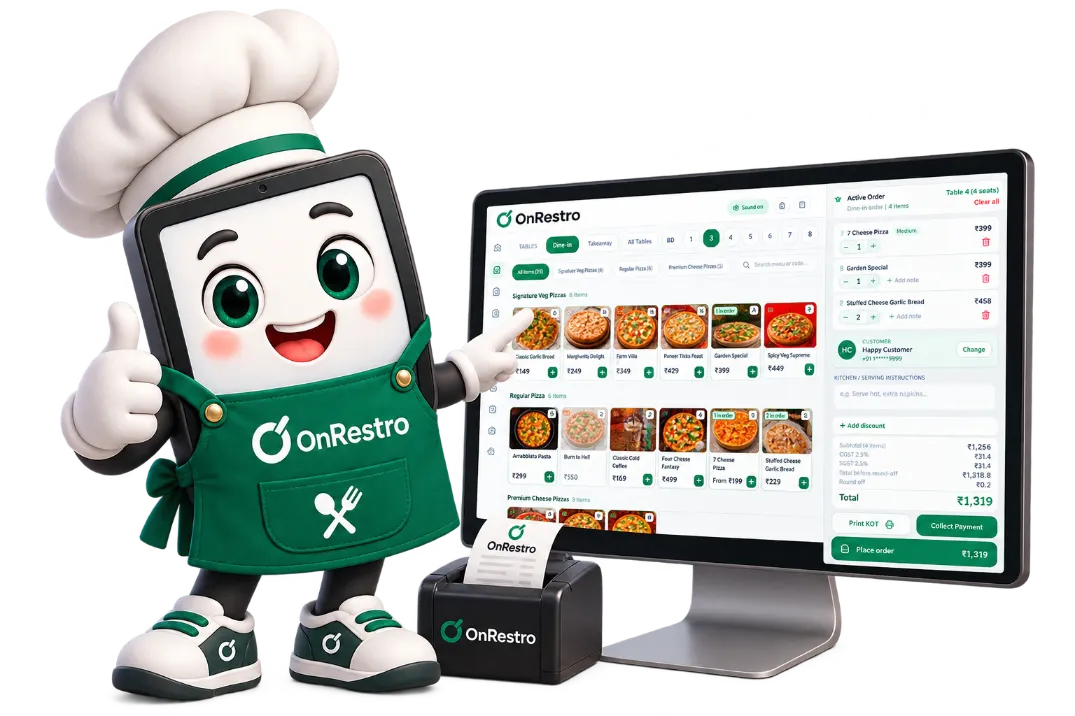
01POS & Billing
Less tapping around. More orders handled.
Dine-in and takeaway orders, KOTs and payment from one screen built for the pace of a restaurant.
POS billing
Build an order, add discounts and settle the bill without leaving the screen.
Dine-in & takeaway
Pick a table or start a takeaway order; each follows its own flow.
Touch-friendly POS
Large tap targets for tablets, and search by dish name or item code.
Split & multiple payments
Settle one bill with more than one payment method, or split it between guests.
Discounts with reasons
Every discount records why it was given, so you can review it later.
GST-ready invoices
CGST and SGST on every invoice, numbered in your own invoice series.
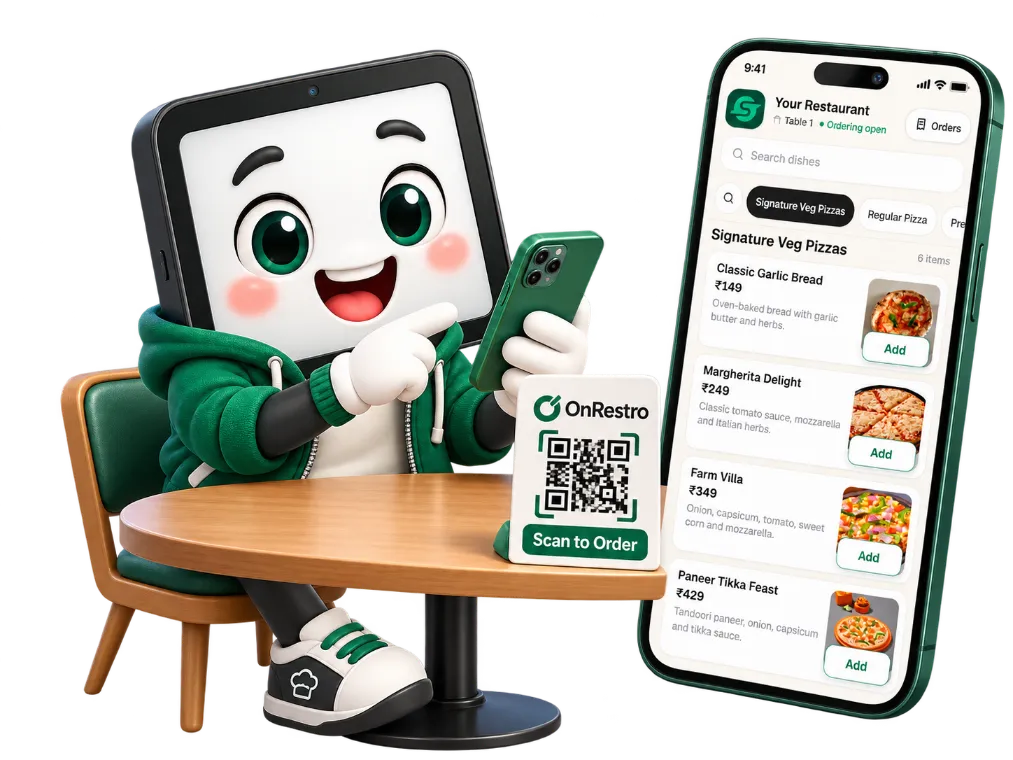
02QR Table Ordering
A smoother way for guests to order.
Guests scan the QR code on their table and order from their own phone, while you control the menu.
Online ordering (web / QR)
The menu opens in the phone’s browser. No app to install, no sign-up.
Table management
See which tables are free or occupied and open a table’s order in one tap.
Item variants & notes
Offer sizes or versions of a dish, and add notes like “less spicy”.
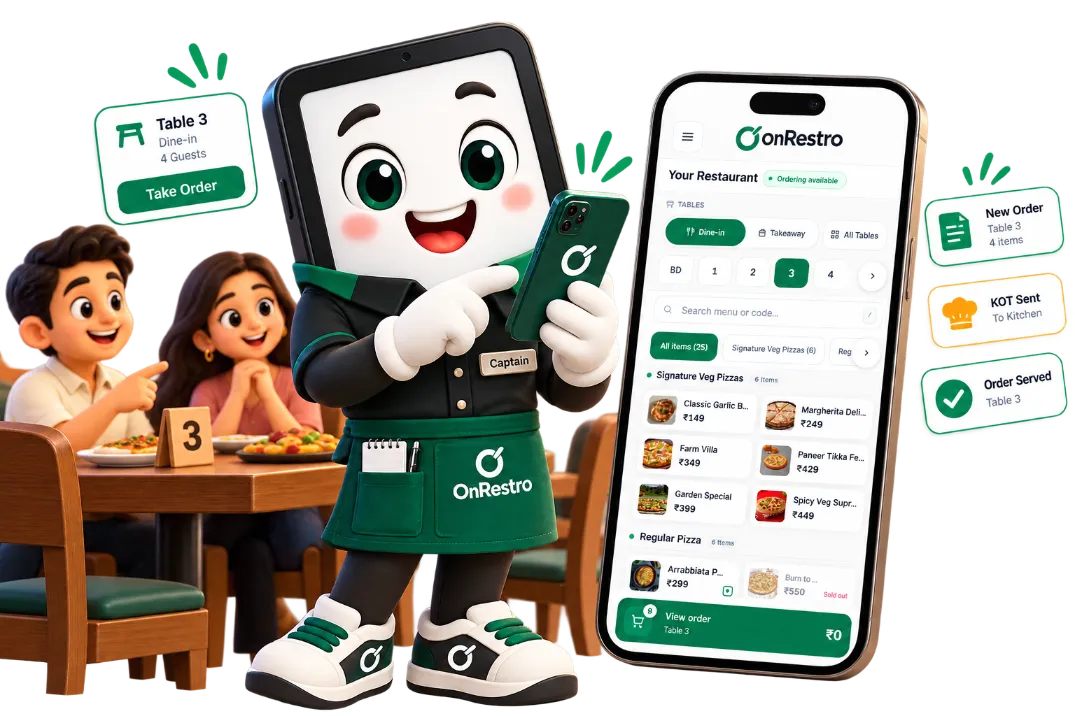
03Captain App
Take the order right at the table.
The POS on a captain’s phone: pick the table, add items and send the KOT without walking to the counter.
Captain App
Runs on staff phones, in the browser or the OnRestro Android app.
Live order status sync
Orders from the counter, captains and QR menus show up everywhere at once, with their status.
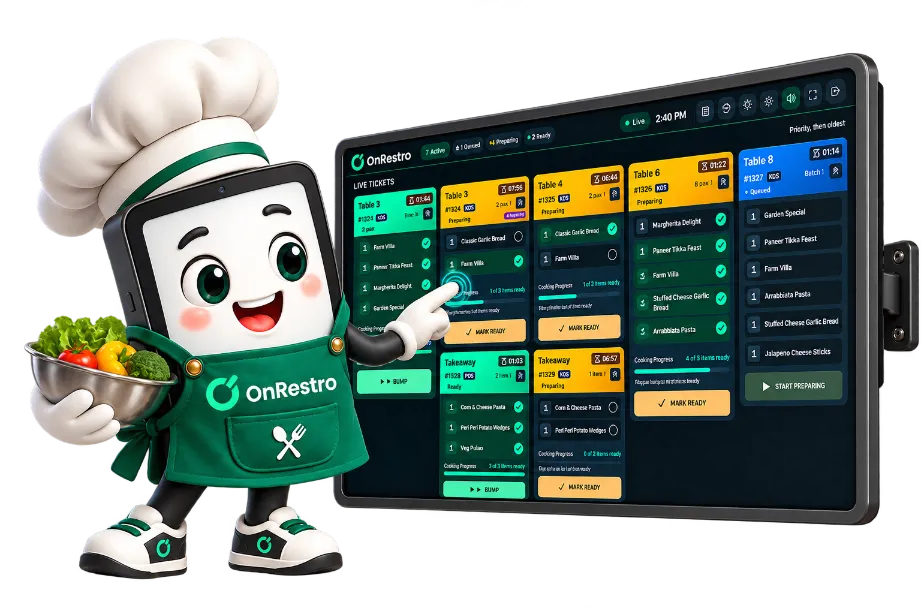
04Kitchen Display
Keep every ticket in view.
The kitchen sees every incoming order on a screen and moves it along as it cooks.
Kitchen Display System (KDS)
Tickets move from Queued to Preparing to Ready, with timers that flag late ones.
KOT printing
Print KOTs on the kitchen printer, or skip the paper and use the display.
05Inventory & Purchases
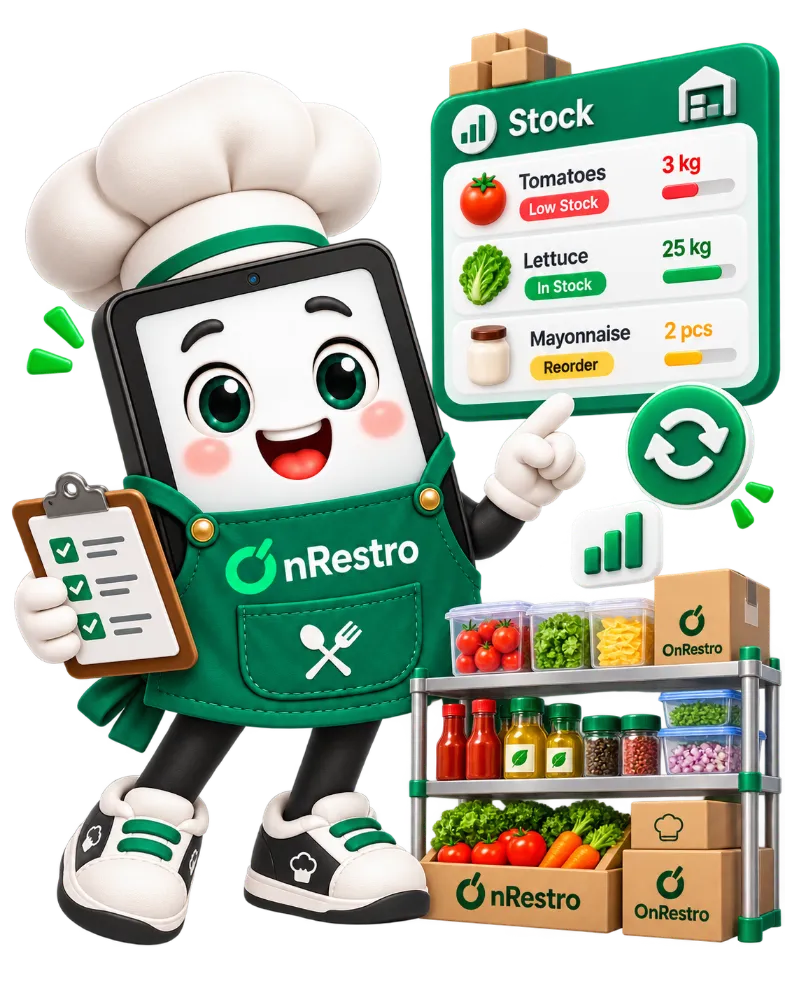
Know what you have, and what went into every dish.
Ingredients, stock and purchases in one place, linked to what you sell.
Inventory tracking
Track ingredients with every receipt, stock count and waste entry recorded.
Current stock view
See what is in stock right now, item by item.
Recipe-level stock deduction
Add a recipe to a dish and every sale uses up its ingredients automatically.
Low-stock warnings
Items running low are flagged on screen before you run out.
Purchase orders
Raise purchase orders and receive the stock against them.
Vendor management
Keep each vendor’s details and what you buy from them in one place.
06Money & Day Close
Keep your books close to your day-to-day work.
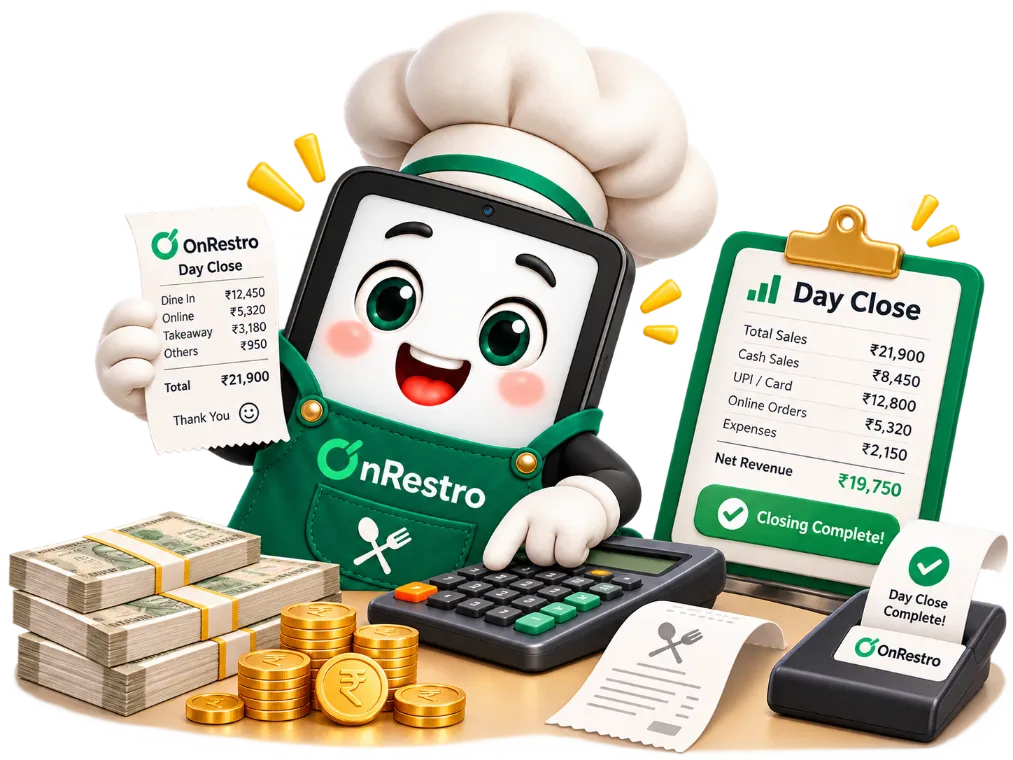
Record what comes in and goes out, and close each day with the cash counted.
Day close & cash tally
Close each business day by matching the cash in the drawer with the system.
Income & expense tracking
Record expenses and other income, such as catering or marketplace payouts.
Expense analytics
See where the money goes, by category and over time.
07Reports & GST
The numbers behind the rush, made easy to read.
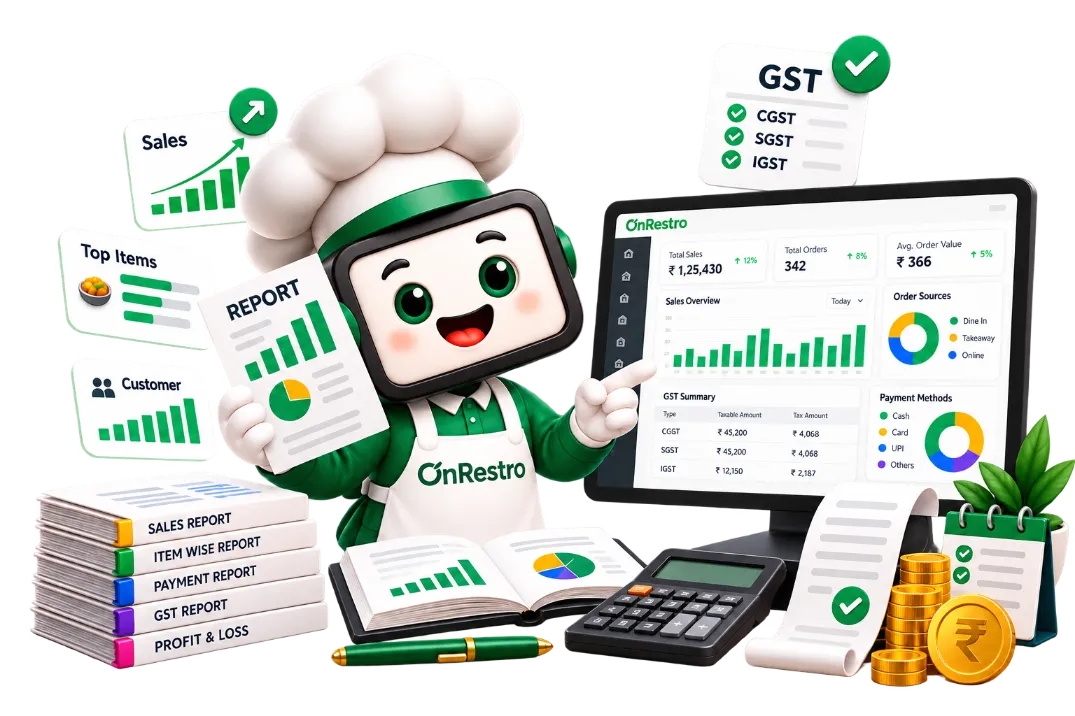
From today’s sales to a cash-basis Profit & Loss. Tax reports are GST-ready; filing returns stays with your accountant.
Owner dashboard
Net sales, orders, average order value and table occupancy at a glance.
40+ reports
Sales, payments, menu, tax, exceptions, price audits and cash-basis Profit & Loss.
Excel, PDF & CSV downloads
Download any report to share with your accountant or partners.
Customer insights
A customer directory with each guest’s order history.
08Team & Access
Give the right people the right tools.
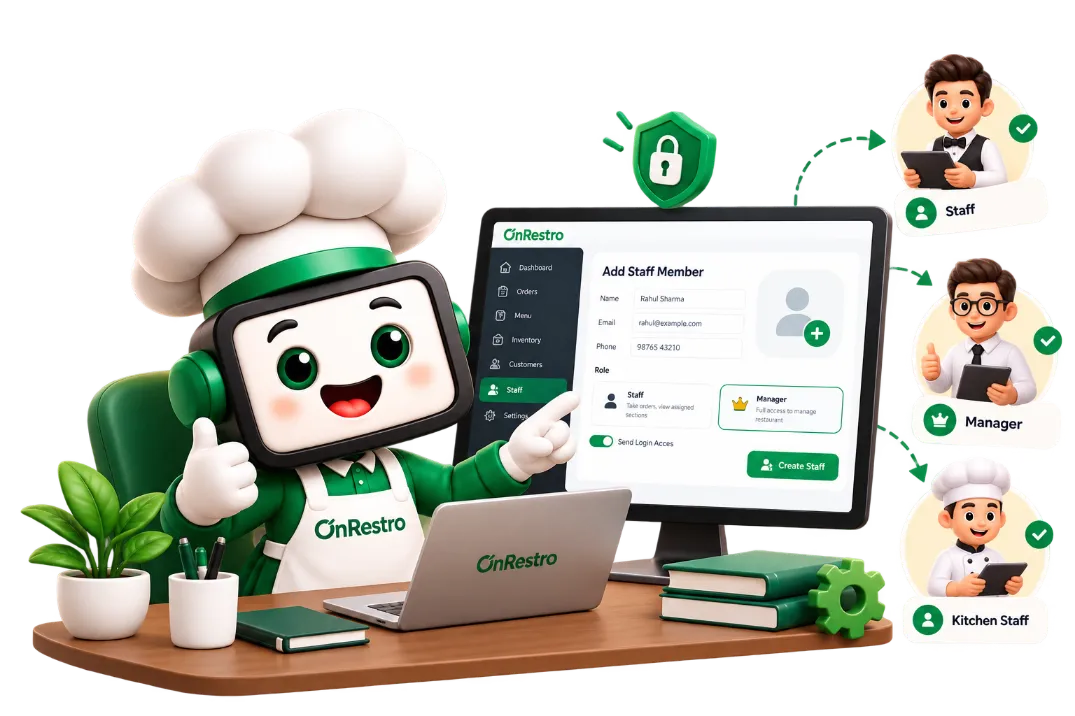
Owners stay in control while managers and staff get exactly the access their job needs.
Multiple staff roles
Owner, manager and staff accounts, each with their own sign-in.
Granular role-based access
Choose what each role can see and do, from billing to reports.